

Templates
The Templates section of the dashboard is your saved-templates library. It lists the reusable Styble templates you've created, lets you manage them, and gives you each template's shortcode so you can drop it anywhere on your site.
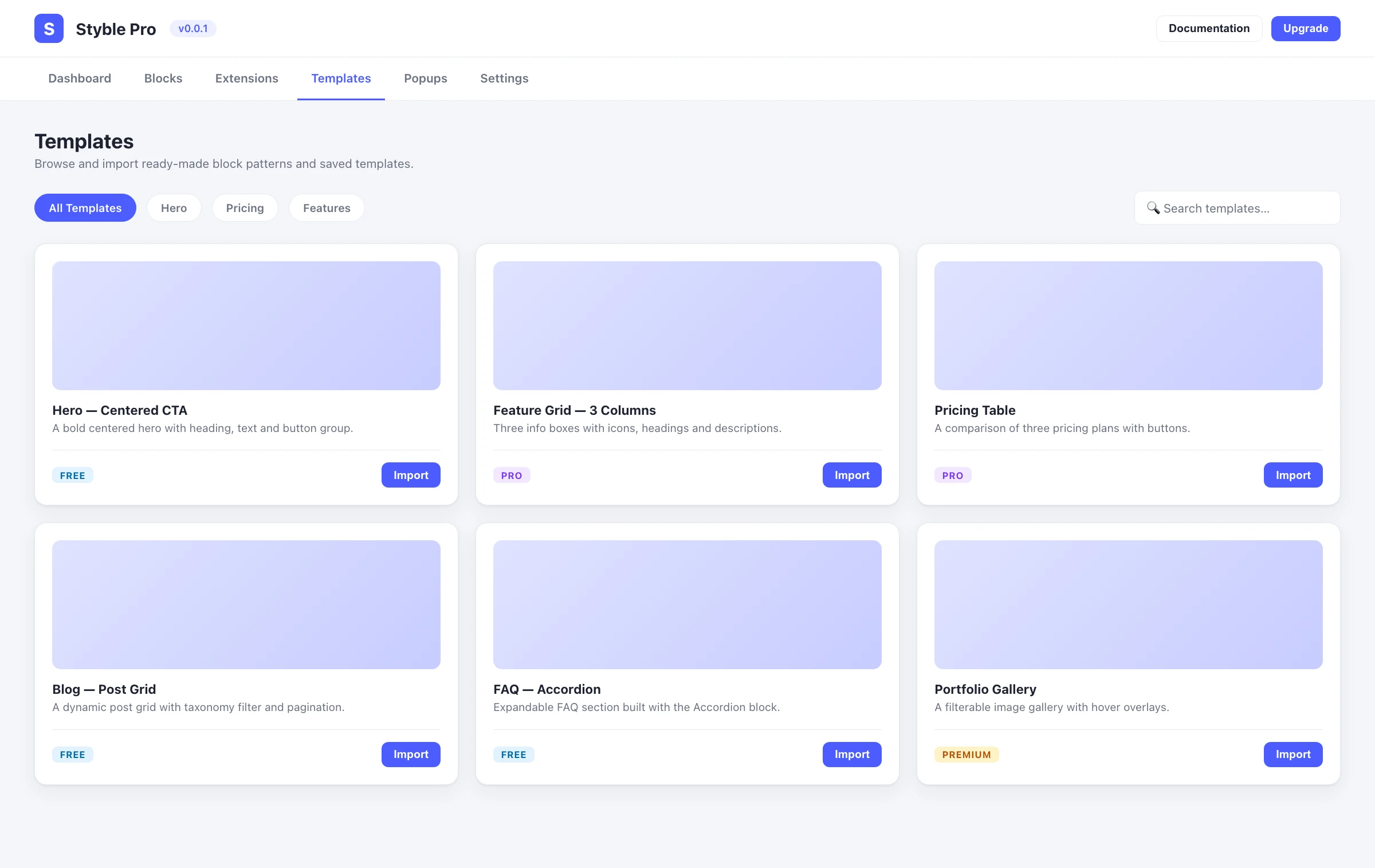
Opening the Templates section
- Open the dashboard from the Styble Pro admin menu.
- Click Templates in the top navigation.
Saved templates are shown in a table with Title, Shortcode, Date, and Action columns, plus a checkbox column for selecting rows.
Add a new template
Click Add New Template (top right) to open the block editor and build a new saved template. Once published, it appears in this list.
Use a template's shortcode
Each row shows a shortcode such as [sp_styble id="123"].
- Click the shortcode cell (or press Enter while it is focused).
- The shortcode is copied to your clipboard and a Copied! confirmation appears.
- Paste it into any post, page, or widget to render that template.
Row actions
The Action column provides per-template controls:
| Action | What it does |
|---|---|
| Edit | Opens the template in the block editor (new tab). |
| Duplicate | Creates a copy of the template as a draft, named "… (Copy)". |
| Delete | Permanently deletes the template (after a confirmation prompt). |
Bulk actions
Use the checkboxes to select templates, then choose an action from the Bulk Action dropdown and click Apply:
| Bulk action | Result |
|---|---|
| Publish | Sets the selected templates to published. |
| Draft | Moves the selected templates to draft. |
| Delete | Deletes the selected templates. |
The header checkbox selects or clears all templates on the current page at once.
Search & pagination
- Use the Search… field to filter templates by title (the list updates shortly after you stop typing).
- The footer shows the current page, total page count, and item count, with previous / next and numbered page buttons when there is more than one page.
Importing preset patterns
To start from a ready-made design instead of a blank template, use the Templates / Design Library button while editing a page or post in the block editor. The same preset library powers the Popup Builder template chooser.
Related pages
- Dashboard overview
- Popup Builder
- Settings → Advanced (toggle the Design Library button)