

Advanced Video
Embed videos with advanced styling and playback controls.
The Advanced Video block embeds self-hosted or external videos with full control over playback, a poster image, overlays and a custom play button. It supports inline display as well as popup/play-button display styles.
When to use it
- To embed a video with a branded poster image and overlay.
- For hero sections with autoplay, muted preview or looping background video.
- When you need fine playback control (mute, loop, speed, player chrome).
- To launch a video from a styled play button or popup.
How to add it
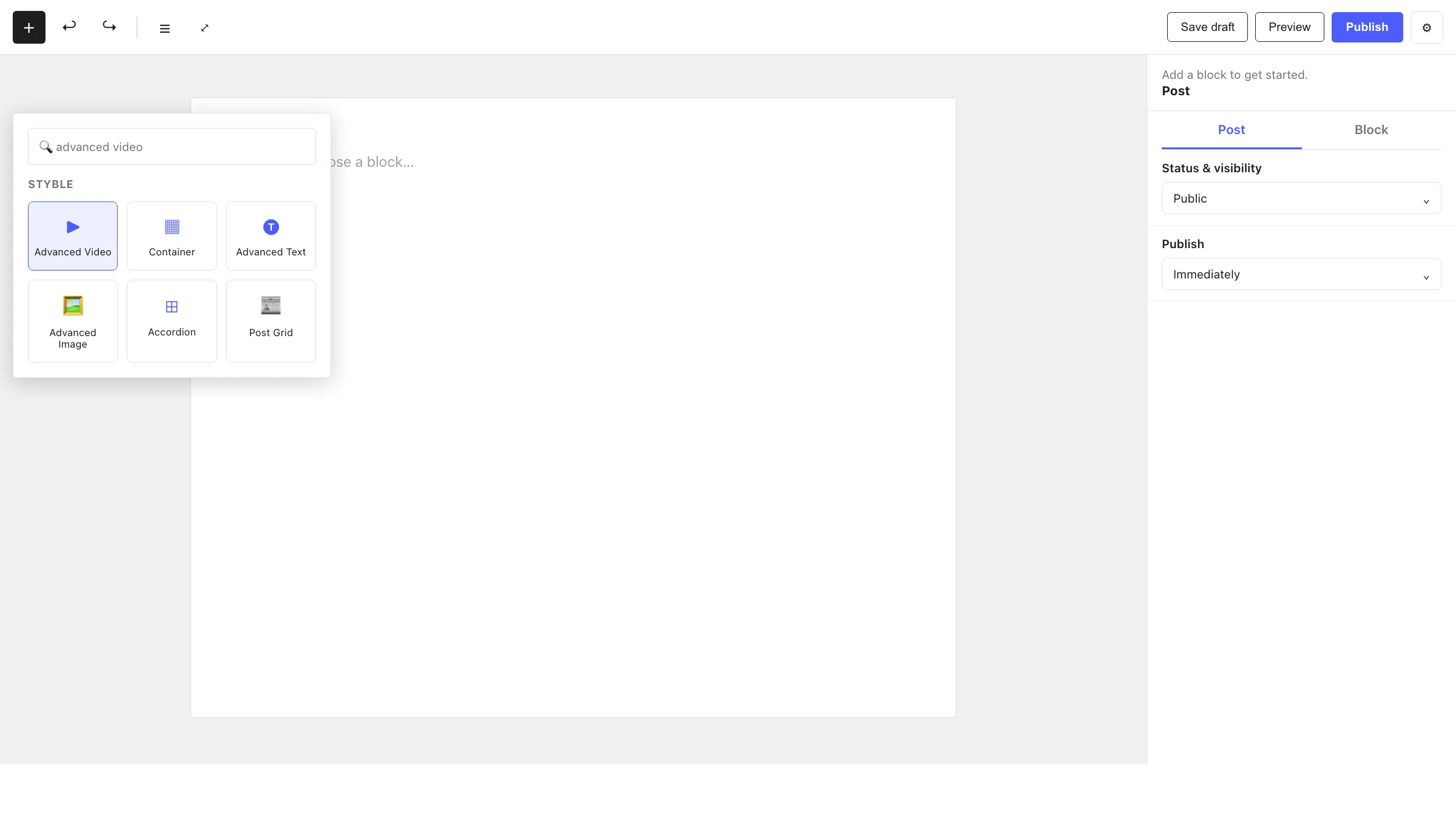
- Click the + block inserter in the editor.
- Search for Advanced Video and select it.
- Paste the Video URL (or choose media), then configure playback and poster options.
Settings
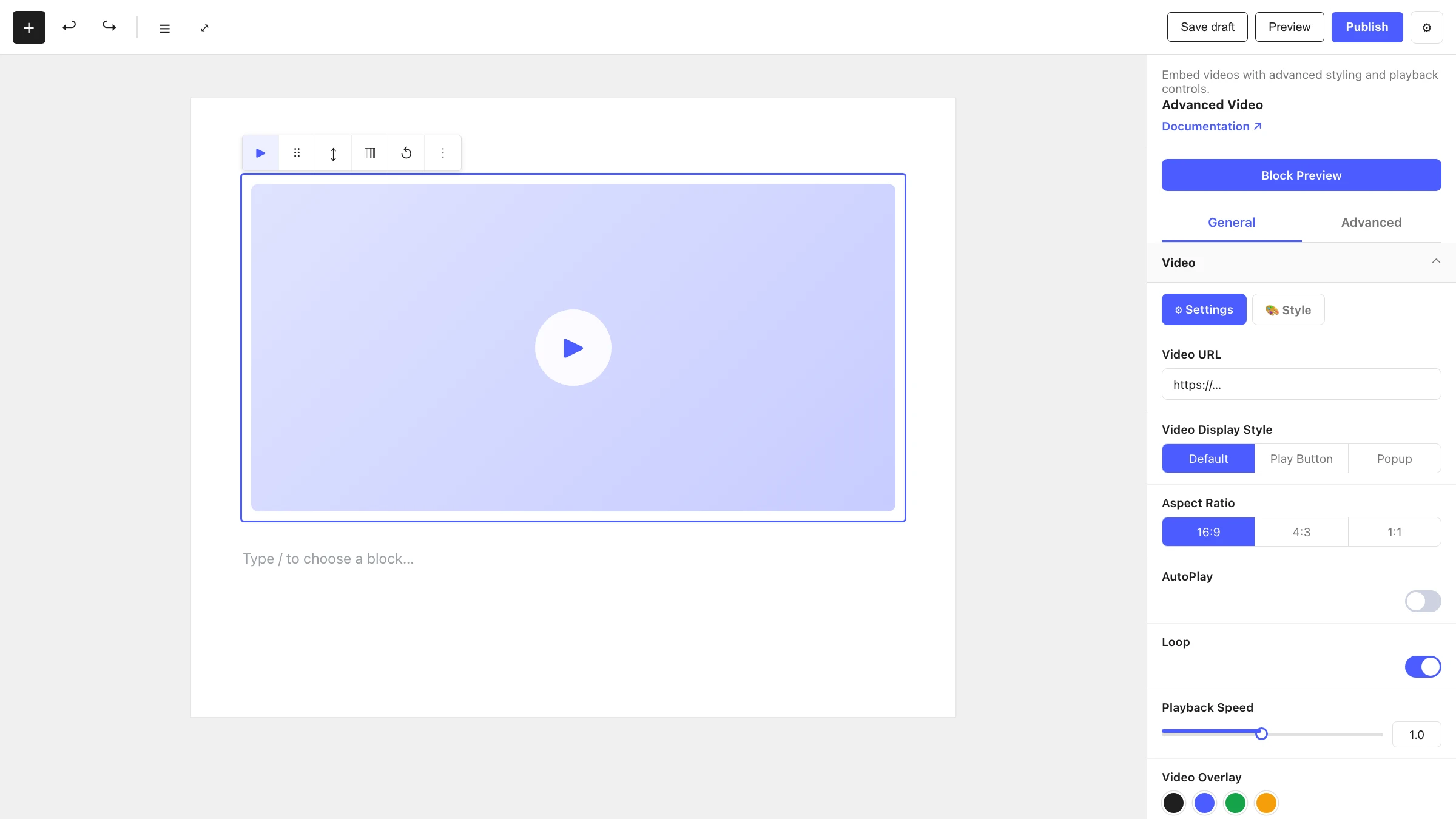
Select the block and open the inspector on the right. Settings are split across two tabs: General (specific to this block) and Advanced (shared by all Styble blocks). The Video panel also has Settings and Style sub-tabs.
General tab
Video
Source and display settings:
| Control | What it does |
|---|---|
| Video URL | The video source URL. |
| Start Time (seconds) / End Time (seconds) | Clip the playback range. |
| Video Display Style | Default (inline) or a play-button / popup style. |
| Video Play Mode | How the video plays. |
| Aspect Ratio | Constrain the player to a fixed ratio. |
| Width / Height / Max Width | Player dimensions. |
| Button Style | Style of the play / launch button. |
| Button Text | Optional label on the button. |
| Animation Effect | Entry animation for the player/button. |
| Animation Duration | How long the animation runs. |
Playback Control
Fine control over how the video plays:
| Control | What it does |
|---|---|
| AutoPlay | Play automatically on load. |
| Muted AutoPlay Preview | Muted preview-style autoplay. |
| Mute on Load | Start muted. |
| Playback Speed | Default playback rate. |
| Loop | Repeat the video. |
| Player Control | Toggle / choose the native player chrome. |
| Play Icon | Show a play icon overlay. |
| Play Icon Type | Which play-icon style to use. |
| Download Button | Allow downloading the video. |
| Disable Right Click | Block the right-click menu. |
| Privacy Mode | Privacy-enhanced embedding. |
| Lazy Load | Defer loading until needed. |
Poster and Overlay
Shown when Video Display Style is Default:
| Control | What it does |
|---|---|
| Video Poster | The placeholder image shown before play. |
| Poster Size | Image size for the poster. |
| Video Overlay | A color/gradient overlay above the video. |
| Overlay Opacity | Strength of the overlay. |
Advanced tab
The Advanced tab is shared by every Styble block (Section Preferences, Transform, Scrolling Effects, Motion Effects, Position, Masking, Cursor, Responsive, Attribute, Custom CSS). See Advanced settings for the full reference.
Nesting & relationships
- Advanced Video can be placed anywhere, including inside a Container or Column.
- Supports wide and full width alignment from the block toolbar.
Tips & common patterns
- For a background-style hero, enable AutoPlay, Mute on Load and Loop, and hide the player chrome.
- Use a play-button Video Display Style with a Poster image to keep pages lightweight until the user clicks.
- Add a subtle Video Overlay to keep overlaid text readable.
- Enable Lazy Load for videos below the fold to improve page performance.
- Style the play button and overlay colors via Global Settings.