

Admin Dashboard
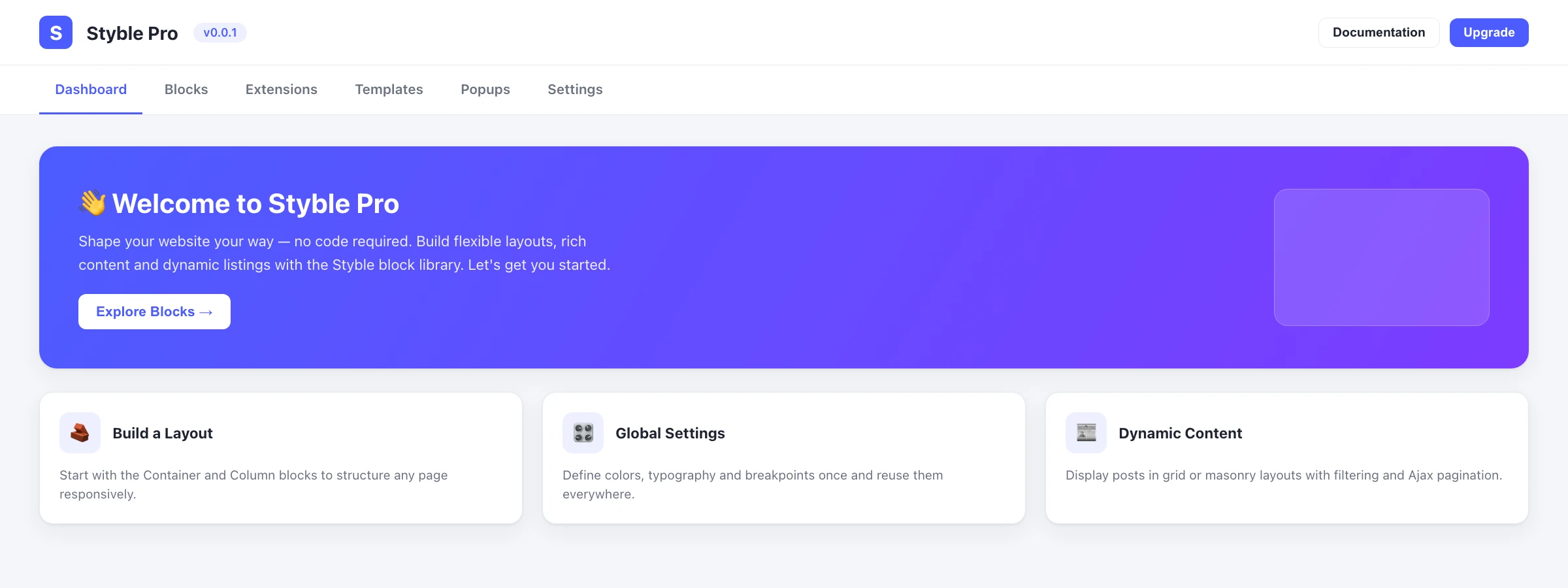
The Styble Pro Admin Dashboard is the central control panel for the plugin. From here you can enable or disable blocks and extensions, manage saved templates and popups, and configure every plugin setting — all from a single React-powered screen inside the WordPress admin.
How to open it
- Activate Styble Pro (see Installation & Activation).
- In the WordPress admin sidebar, click the Styble Pro menu item.
- The dashboard opens on the Welcome screen.
Direct links
Each dashboard section has its own URL hash (for example #blocks or #settings), so you can bookmark or share a link that opens directly on a particular section.
The Welcome page
The Welcome (Getting Started) page greets you by name and gives you quick entry points to the rest of the plugin:
- A Complete Guideline video walkthrough you can play inline.
- An Explore Blocks button that jumps straight to the Blocks section.
- A See Full Features link to the Styble feature overview.
- Quick cards for Documentation, Support & Help, and leaving a Review.
- Community and AI banners with links to connect with other Styble users.
Navigating between sections
A horizontal navigation bar sits at the top of the dashboard. Click any item to switch sections — the page updates instantly without a full reload. A Create New Page button on the right opens a fresh page in the block editor (it is hidden while you are on the Popup Builder).
The dashboard is organized into these sections:
| Section | What it does |
|---|---|
| Welcome | Getting-started page with guides, support links, and quick actions. |
| Blocks | Enable, disable, search, and filter the Styble blocks available in the editor. |
| Extensions | Turn add-on modules on or off and configure their per-module settings. |
| Templates | Manage your saved templates library and import preset patterns. |
| Popup Builder | List, create, and manage popups, with bulk actions and a template library. |
| Settings | License activation, performance, site, advanced, import/export, and ecosystem settings. |