

Advanced Image
Add images with powerful styling and customization options.
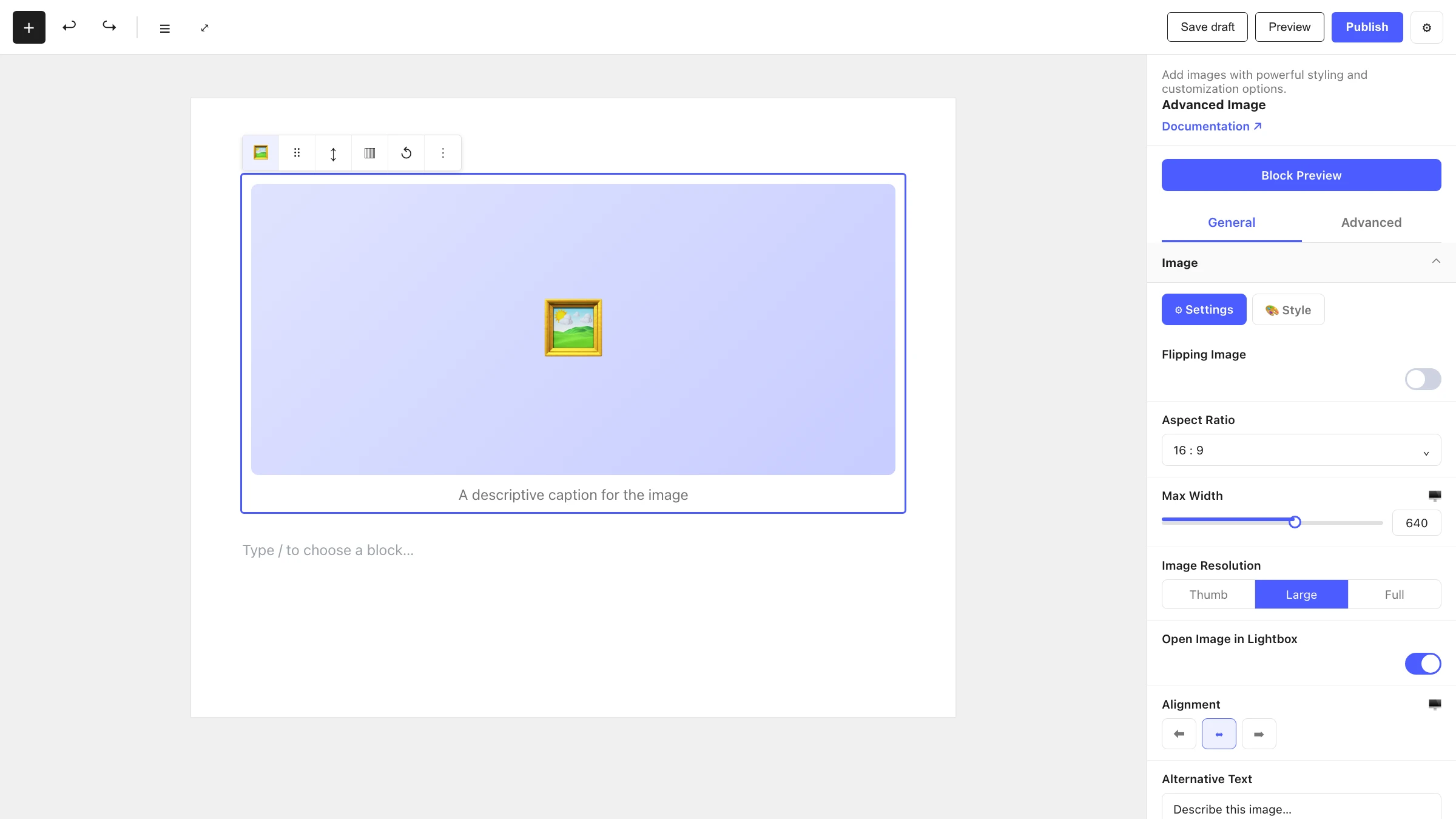
The Advanced Image block goes well beyond the standard image block. It adds aspect-ratio control, lightbox support, links, captions, flip effects and hover animations — all in one place.
When to use it
- For feature images that need precise sizing and aspect ratios.
- To open an image in a lightbox on click.
- To add a styled caption with custom position and visibility.
- For interactive images with flip or hover animations.
- To wrap an image in a link (with new-tab / nofollow options).
How to add it
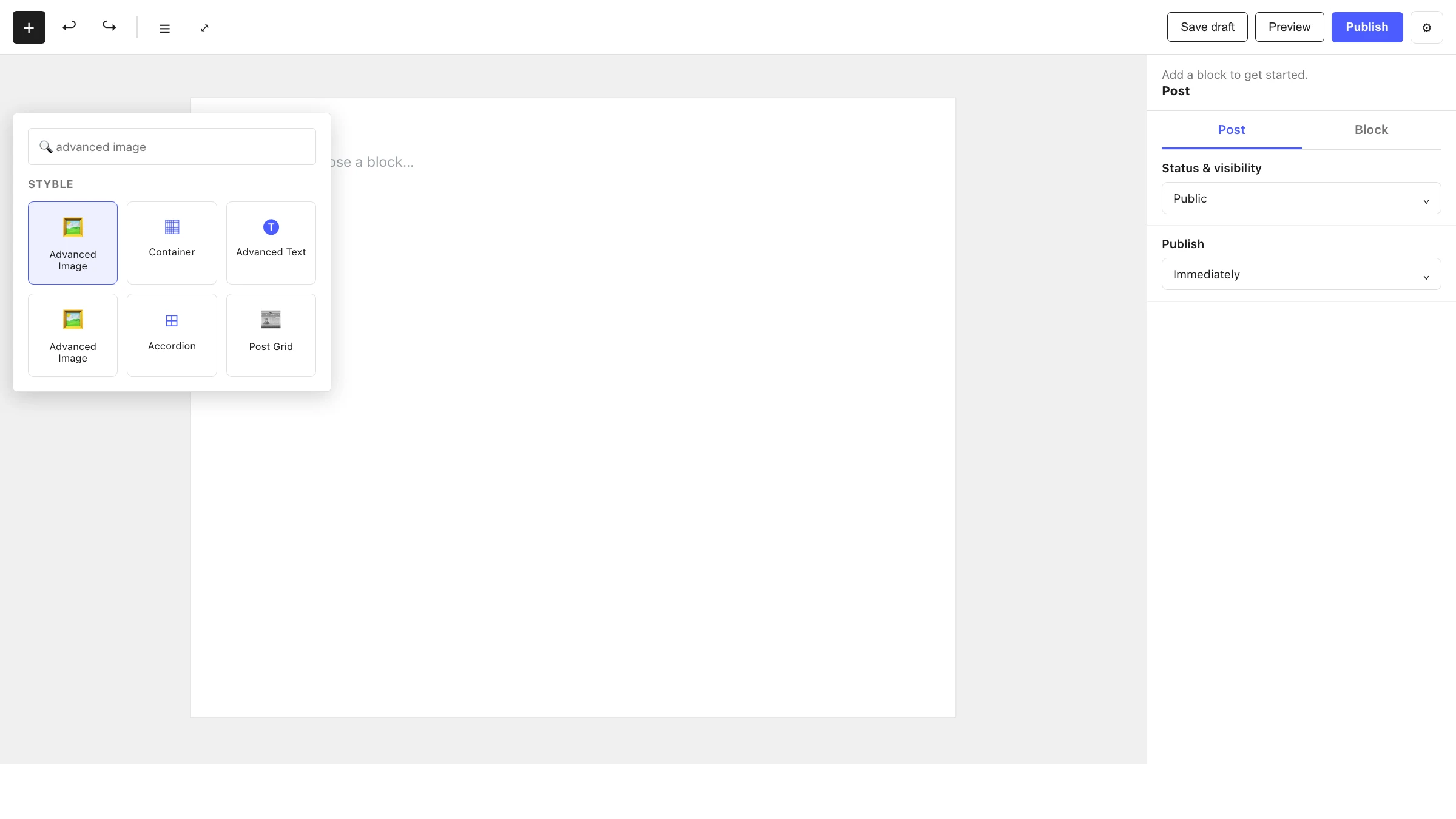
- Click the + block inserter in the editor.
- Search for Advanced Image and select it.
- Click Select Image to choose or upload media, then configure the panels.
Settings
Select the block and open the inspector on the right. Settings are split across two tabs: General (specific to this block) and Advanced (shared by all Styble blocks). The Image and Caption panels also have Settings and Style sub-tabs.
General tab
Image
The core image settings:
| Control | What it does |
|---|---|
| Select Image | Choose or replace the image from the media library. |
| Flipping Image | Toggle a two-sided flip effect. |
| Flip On | Trigger for the flip (e.g. hover). |
| Flip Duration | Length of the flip animation. |
| Aspect Ratio | Constrain the image to a fixed ratio. |
| Max Width | Limit the image width. |
| Width / Height | Explicit dimensions. |
| Image Resolution | Pick the registered image size to serve. |
| Open Image in Lightbox | Toggle lightbox on click. |
| Lightbox Click Action | What clicking does when lightbox is on. |
| Icon Position / Icon Visibility | Placement and visibility of the lightbox icon. |
| Add Link | Wrap the image in a URL (with new-tab / nofollow). |
| Alignment | Align the image within its container. |
| Alternative Text | Alt text for accessibility and SEO. |
Caption
Add and style a caption beneath or over the image:
| Control | What it does |
|---|---|
| Image Caption Source | Where the caption text comes from. |
| Position | Where the caption sits relative to the image. |
| Caption Visibility | Always visible or on hover. |
| Caption Position | Fine-grained placement (overlay). |
| Caption Width | Width of the caption box. |
Hover Effect
Add motion when the user hovers the image:
| Control | What it does |
|---|---|
| Image Animation | The hover animation applied to the image. |
| Caption Hover Effect | The hover animation applied to the caption. |
| Easing | Animation easing curve. |
| Animation Duration | How long the animation runs. |
| Animation Delay | Delay before the animation starts. |
Advanced tab
The Advanced tab is shared by every Styble block (Section Preferences, Transform, Scrolling Effects, Motion Effects, Position, Masking, Cursor, Responsive, Attribute, Custom CSS). See Advanced settings for the full reference.
Nesting & relationships
- Advanced Image can be placed anywhere, including inside a Container or Column.
- Supports wide and full width alignment from the block toolbar.
Tips & common patterns
- Set a fixed Aspect Ratio across a row of images for a clean, uniform grid.
- Combine Open Image in Lightbox with a caption for gallery-style presentations.
- Use Caption Visibility: on hover with a Caption Hover Effect for interactive cards.
- Always fill Alternative Text for accessibility and SEO.
- Define shadows, borders and overlay colors in Global Settings for consistency.