

Extensions
The Extensions section of the dashboard manages Styble Pro's add-on modules — optional features such as Lightbox that you can switch on only when you need them. (This section appears as Extensions in the navigation.)
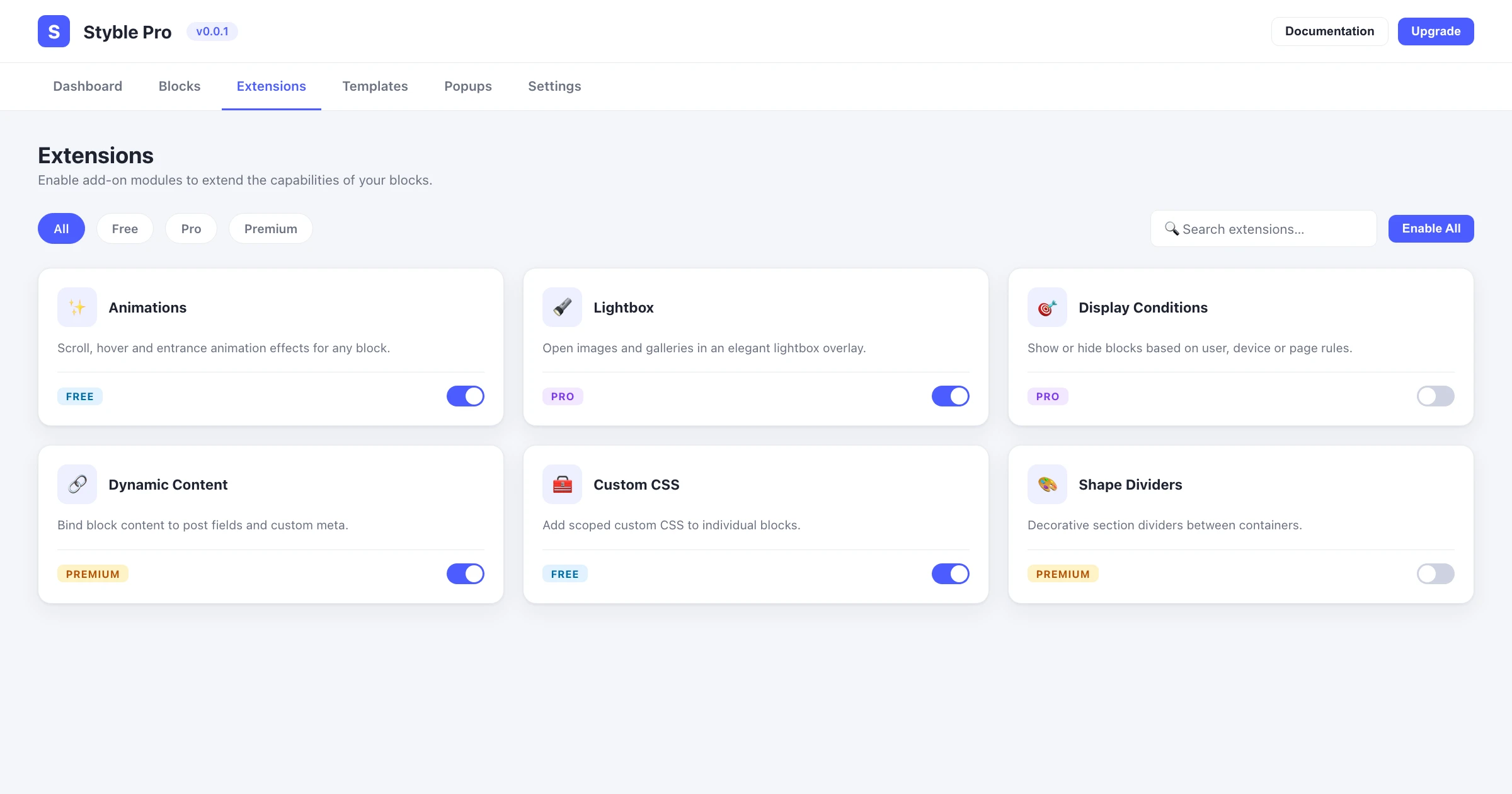
Opening the Extensions section
- Open the dashboard from the Styble Pro admin menu.
- Click Extensions in the top navigation.
Each extension is shown as a card with its icon, title, a short description, a documentation link, an optional settings button, and an on/off toggle.
Enable or disable an extension
- Find the extension you want to change.
- Click its toggle to turn the module on or off.
- The change saves automatically and a confirmation message appears.
Bulk enable or disable
The Enable All toggle in the toolbar (top right) switches every extension currently shown at once.
- Optionally apply a search or license filter first — the bulk toggle only affects the extensions that match the current filter.
- Click Enable All to enable them, or click again to disable them.
- A message confirms that all extensions were enabled or disabled.
Filter by license type
A license dropdown on the left of the toolbar narrows the list by tier:
| Filter | Shows |
|---|---|
| License (default) | All extensions, regardless of tier. |
| Free | Extensions included in the free tier. |
| Pro | Pro-tier extensions. |
Premium modules
Some builds also surface Premium-tier modules. The available license filters depend on your plugin edition, so the dropdown reflects the tiers your installation offers.
Search
Use the Search Extension field in the center of the toolbar to filter as you type. The title, description, and internal module name are all matched. If nothing matches, a "No extensions match your search" message is shown.
Per-module settings
Extensions that ship with their own options show a settings (gear) button on the card.
- Click the gear icon on the extension card.
- A settings drawer slides in from the side of the screen, titled with the module's name.
- Adjust the options in the drawer.
- Click Save Changes to apply, or Reset Changes to discard unsaved edits.
- Close the drawer with the X button, by clicking the backdrop, or by pressing Esc.
Extensions without their own drawer settings link out to the relevant area of the Settings page instead.