

Popup Builder
The Popup Builder section of the dashboard is where you manage all your popups — listing existing ones, creating new popups from a template library, toggling them on or off, and running bulk actions.
Looking for how to design a popup's content and triggers? See the Popup Builder block page.
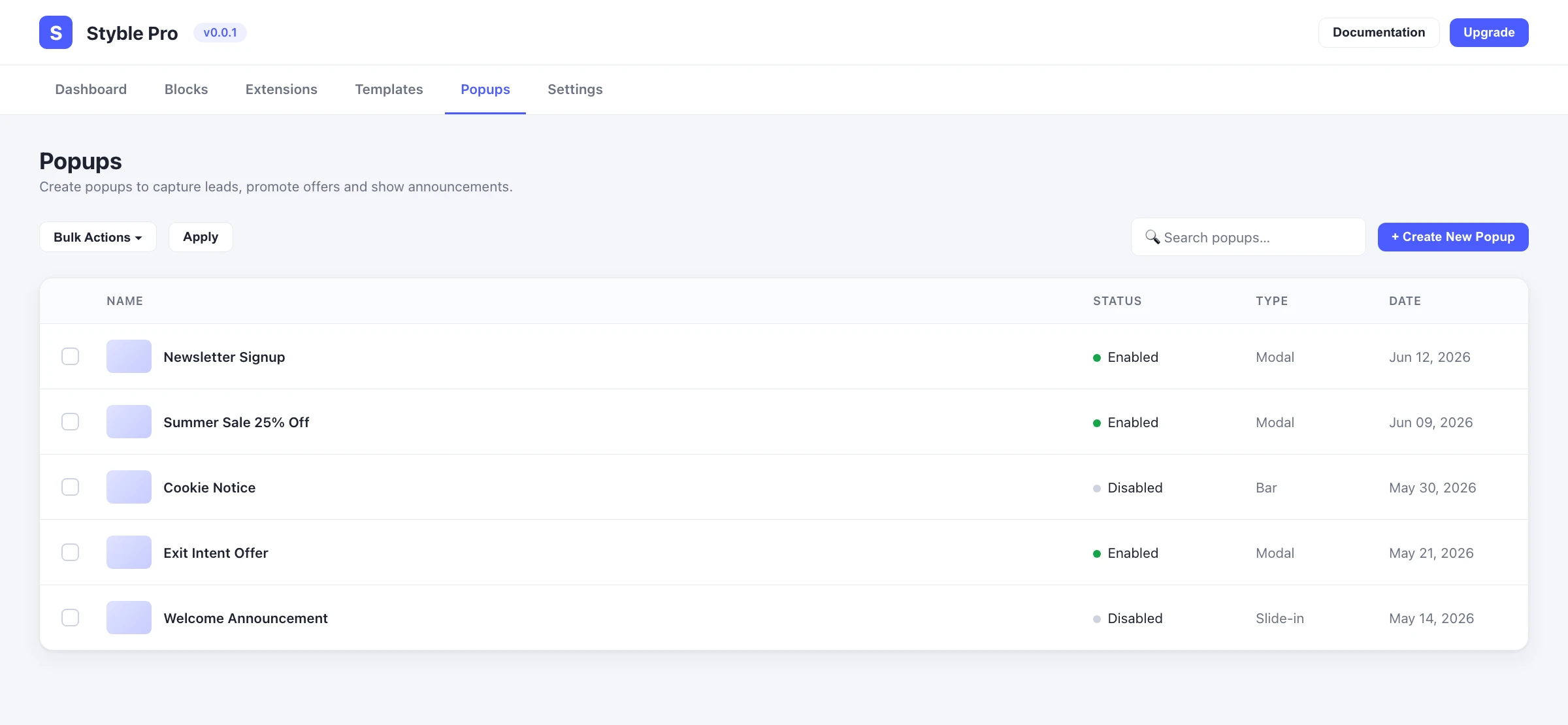
Opening the Popup Builder
- Open the dashboard from the Styble Pro admin menu.
- Click Popup Builder in the top navigation.
Popups are shown in a table with Title, Type, Date, Views/Clicks, and Status columns, plus a checkbox column for selecting rows.
Create a new popup
- Click Create New Popup (top right).
- The template library opens. Choose a ready-made popup template to start from, or create a blank popup.
- You're taken to the popup editor, where you build the popup using the Popup Builder block.
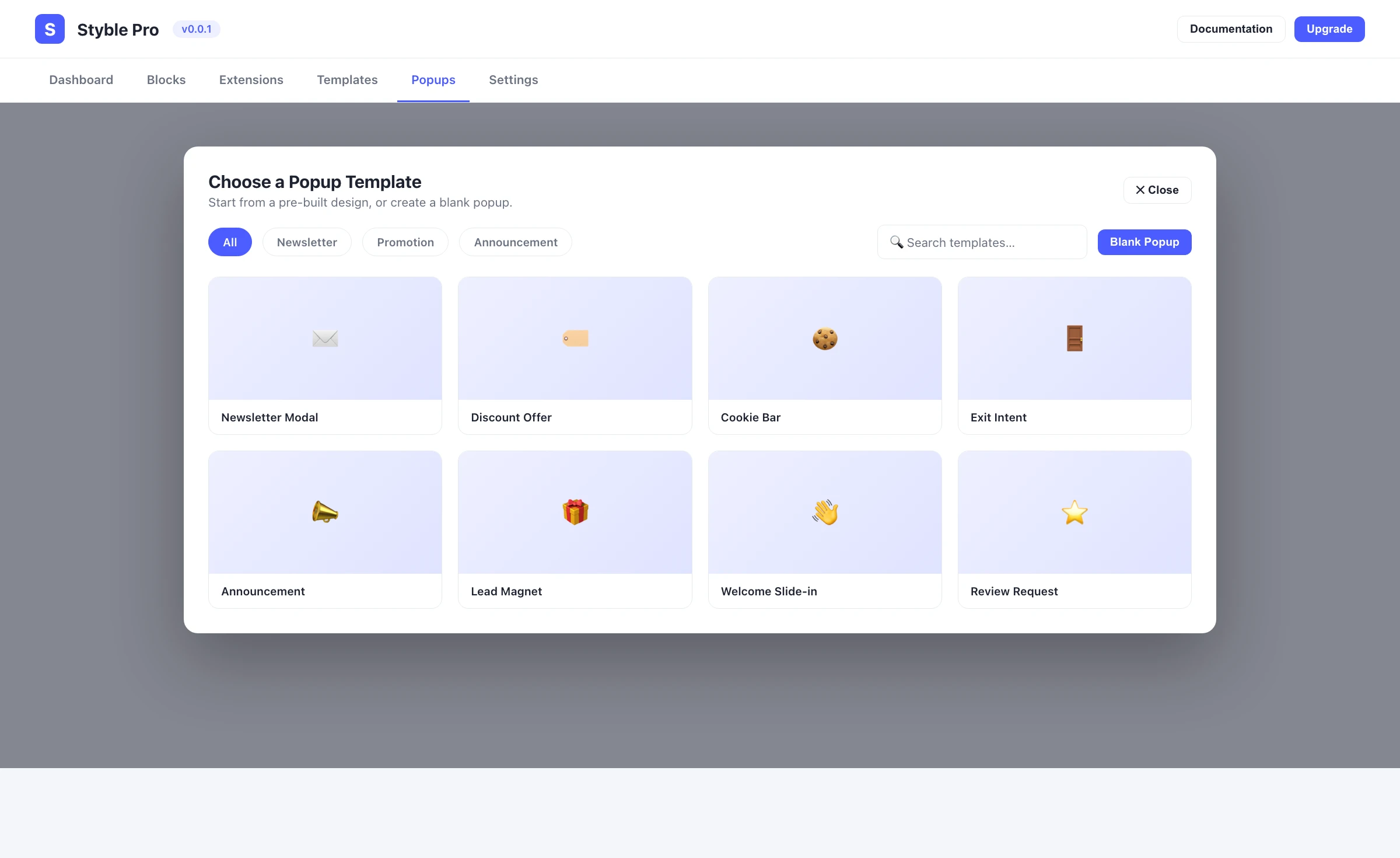
Enable or disable a popup
Each row has a status toggle in the Status column.
- Find the popup in the table.
- Click its toggle to enable or disable it.
- The status updates in place.
Bulk actions
Select popups with the row checkboxes (or the header checkbox to select all on the page), choose an action from the Bulk Action dropdown, then click Apply:
| Bulk action | Result |
|---|---|
| Enable | Activates the selected popups. |
| Disable | Deactivates the selected popups. |
| Move to Trash | Sends the selected popups to the trash. |
A confirmation message appears after a bulk action is applied.
Search & pagination
- Use the Search.. field to filter popups by title.
- Pagination controls appear above and below the table, showing the current page and total, so you can move through large popup lists.
Related pages
- Popup Builder block — building the popup's content and behavior
- Dashboard overview
- Templates