

Post Grid
Present posts in responsive and visually appealing grid layouts.
The Post Grid is Styble Pro's flagship dynamic block. It queries your posts (or any post type) and renders them in responsive grid, masonry or list-style layouts, with full control over the query, the card layout and every content part — title, taxonomy, meta, excerpt, read-more and social share. Posts are rendered server-side and cached, and an optional Ajax Pagination child gives visitors no-reload navigation.
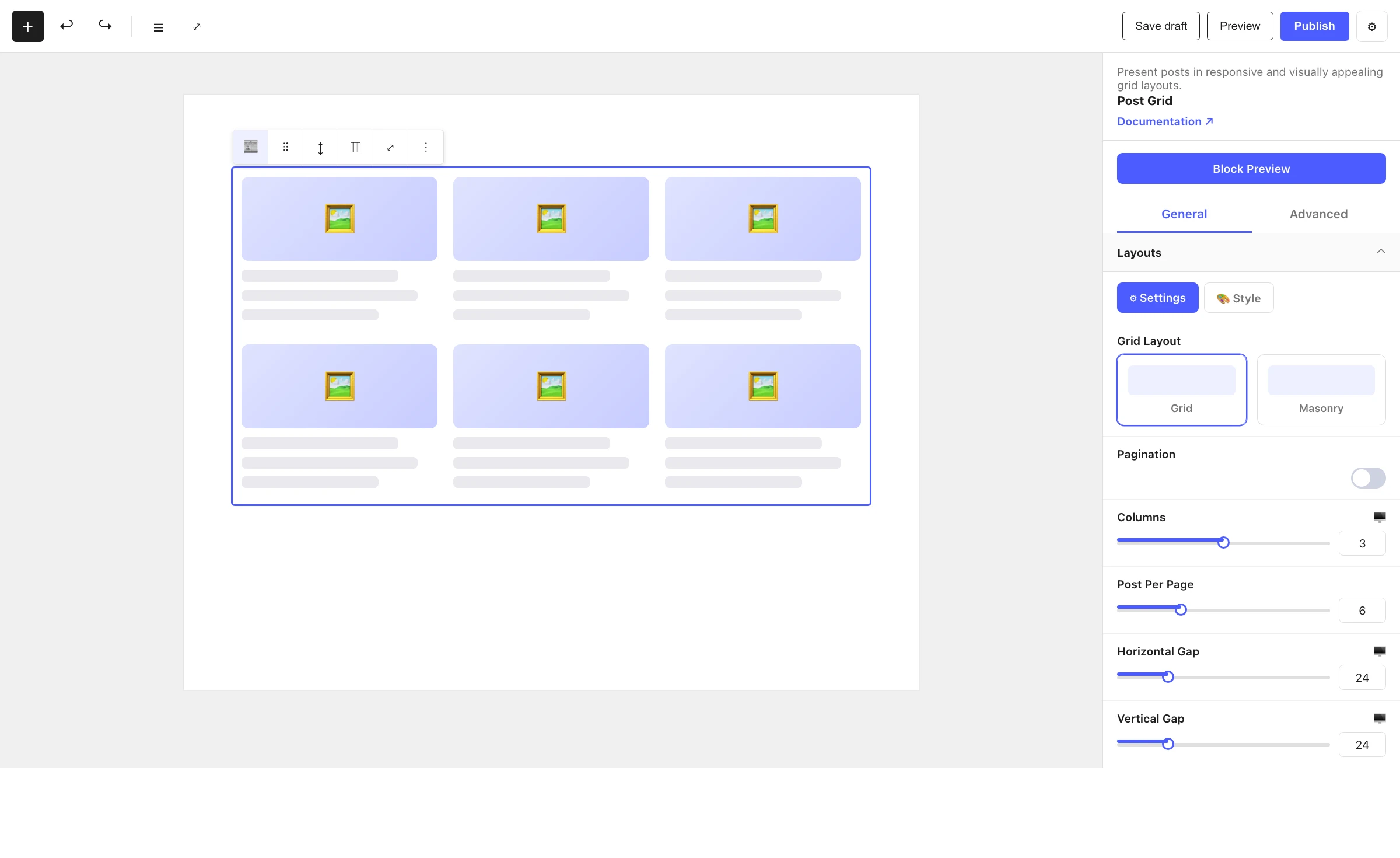
See it in action

Ajax pagination loads the next set of posts without reloading the page:
When to use it
- To build a blog index, news feed or article archive.
- To show "related" or "latest" posts in a section.
- To display custom post types (products, portfolios, events) in a grid.
- To create filtered listings by taxonomy, popularity or date range.
How to add it
- Click the + block inserter in the editor.
- Search for Post Grid and select it.
- Pick a Grid or Masonry layout, then open Query Builder to choose what posts to show.
- Toggle the content parts (title, meta, excerpt, etc.) you want on each card.
Settings
Select the block and open the inspector on the right. Settings are split across two tabs: General (specific to this block) and Advanced (shared by all Styble blocks). The General tab is organized into the panels below.
General tab
Layouts
| Control | What it does |
|---|---|
| Grid Layout | Choose Grid or Masonry. |
| Pagination | Enable AJAX pagination (attaches the Ajax Pagination child when there is more than one page). |
| Columns | Number of columns (1–6, responsive). |
| Post Per Page | How many posts to show per page. |
| Horizontal Gap / Vertical Gap | Spacing between cards (0–100). |
| Content Alignment | Align card content — Start, Center or End. |
| Equal Height | Force all cards to the same height (Grid layout only). |
| Link Open In New Tab | Open post links in a new tab. |
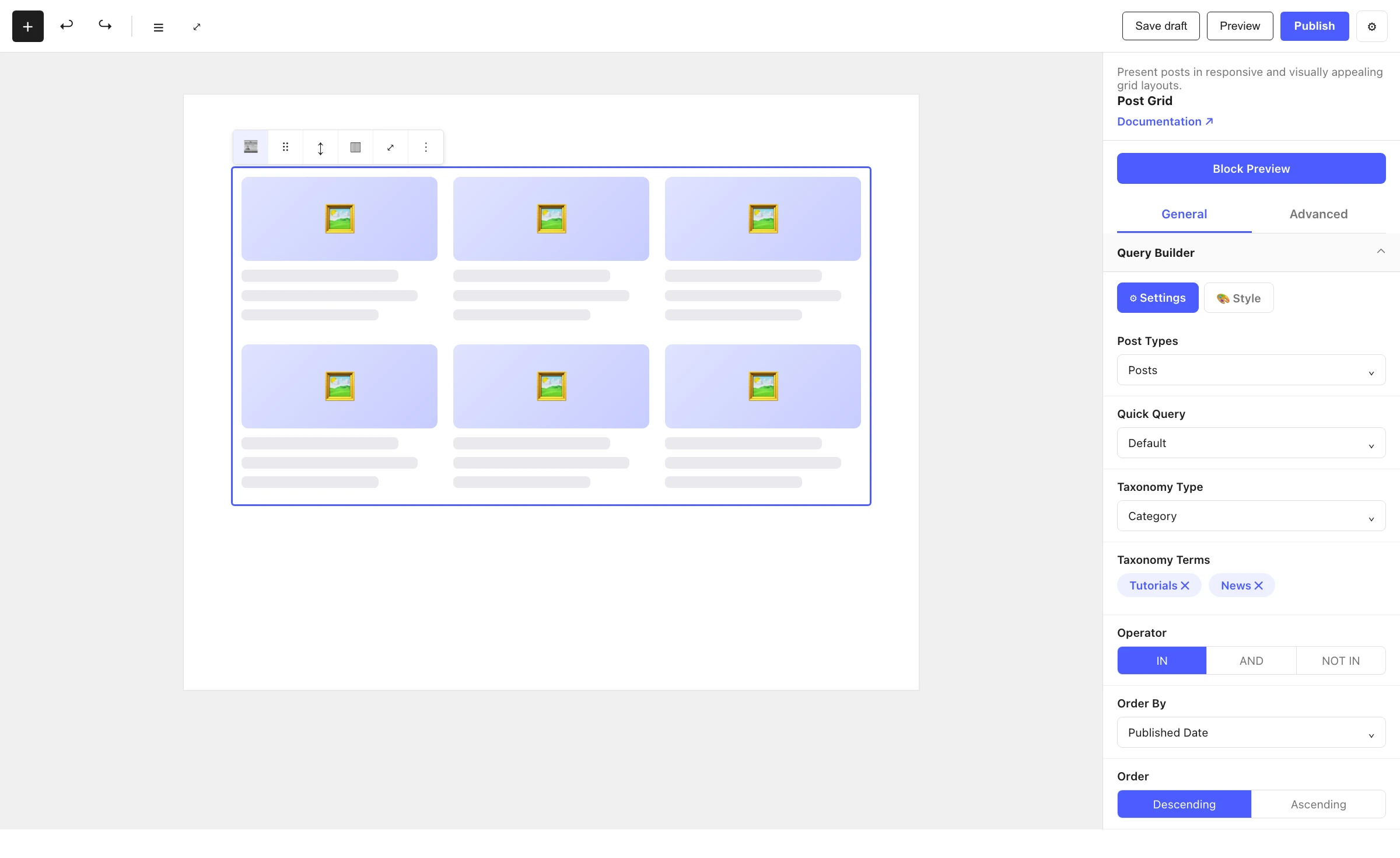
Query Builder
This is where you define which posts appear:
| Control | What it does |
|---|---|
| Post Types | Select one or more post types to query (defaults to Posts). |
| Quick Query | Preset queries — Default, Popular (24-hour / 3, 7, 14, 30-day, 3-month, 1-year / all-time views) and recent ranges. |
| Taxonomy Type | Choose a taxonomy to filter by (e.g. Category, Tag). |
| Taxonomy Terms | Pick the terms to include (drag-and-drop, shown once a taxonomy is selected). |
| Operator | How terms combine — IN, AND or NOT IN. |
| Order By | None, Published Date, Title, Modified Date, Post Type, Random, Menu Order or Most Viewed. |
| Order | Descending or Ascending. |
| Posts Not Found Text Label | The "no results" message shown when the query returns nothing. |
Image
Featured-image controls: Image Size (including a Custom size with Width/Height), Image Scale (Cover / Contain / Fill), Srcset and Lazy Loading. The Style tab adds hover effects (zoom, slide, rotate), border and border radius.
Content Area
Use Drag & Drop Content Parts to show, hide and reorder the card's parts: Taxonomy, Title, Meta Data, Excerpt, Read More and Social Share. The Style tab controls the card's background, border, border radius, box shadow and padding (Normal/Hover states).
Title
HTML Tag (H1–H6 or Span), Title Display Type (Full or Limited) and Length (in words). The Style tab handles typography, color and margin.
Taxonomy
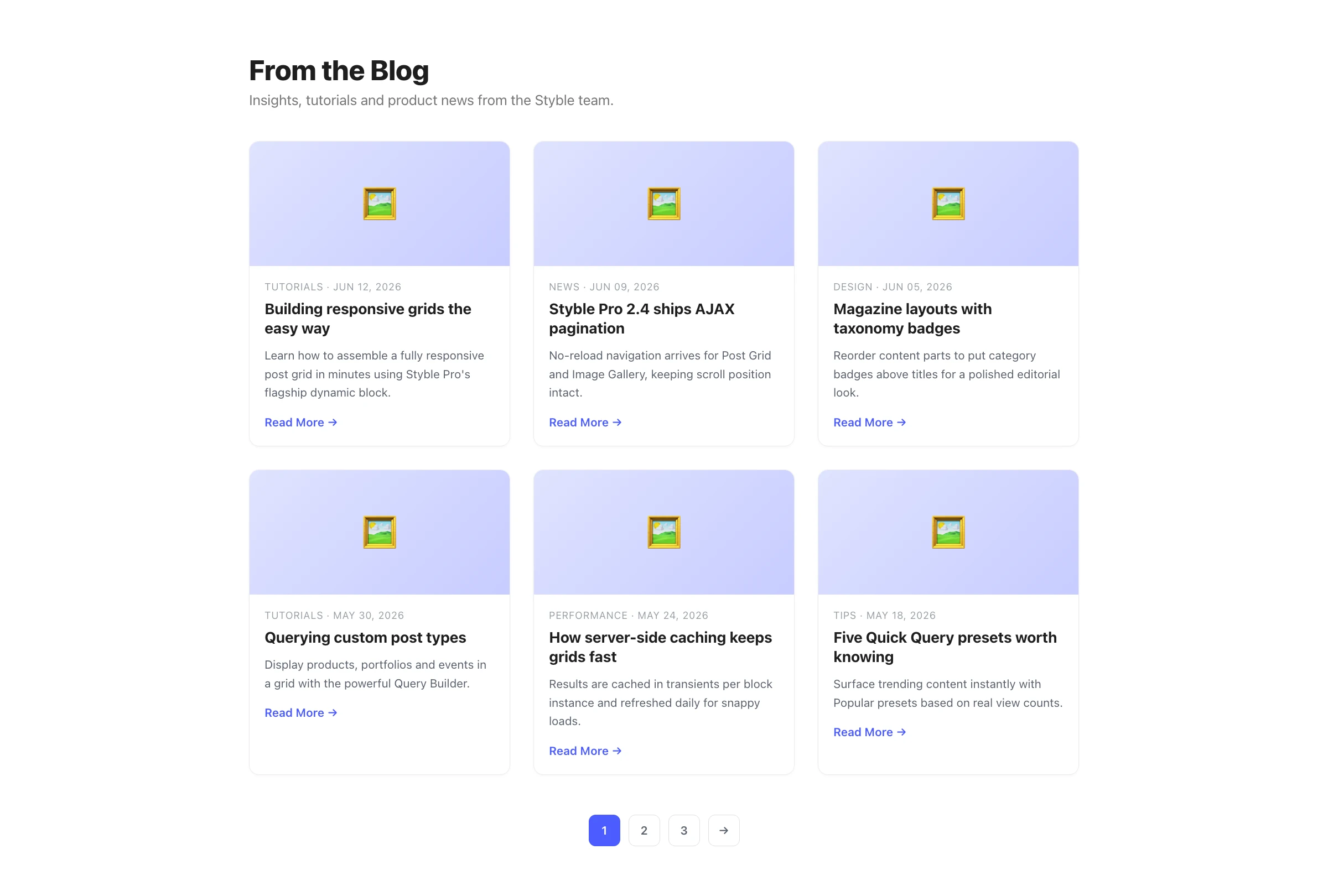
Choose the Taxonomy Type to display on the card and its Position — Above Title, Beside Other Meta, or over the thumbnail (corner and center placements). The Style tab styles the taxonomy badges.
Meta Data
Toggle and reorder meta items via drag-and-drop: Author, Date, Comments, Views, Likes and Reading Time. Configure Date Format (Default, Time Ago or Custom) and reading-time settings (Per Min words, Reading Time Postfix).
Excerpt
Excerpt Type (Full or Limited), Length (words or characters) and the Ellipsis ending characters.
Read More
Button Label, Make Button Full Width and Alignment. The Style tab styles the button.
Social Share
Choose Sharing Media (Facebook, X, LinkedIn, Pinterest, Email, Reddit, WhatsApp, Copy URL and more), plus Icon Size and Space Between icons.
Advanced tab
The Advanced tab is shared by every Styble block (Section Preferences, Transform, Scrolling & Motion Effects, Position, Masking, Cursor, Responsive, Attribute, Custom CSS). See Advanced settings for the shared reference.
How rendering works
Post Grid is a dynamic block — its markup is generated by PHP on the server, not saved in the post content. On the front end the query runs through Styble's query handler, and the result is cached in a WordPress transient (keyed per block instance, refreshed daily) so repeat page loads stay fast. The cache is automatically bypassed for live AJAX filtering and for non-deterministic orderings such as Random or Most Viewed, and it is cleared when posts are added or updated.
Nesting & relationships
- When Pagination is enabled and the query returns more than one page, Post Grid attaches the Ajax Pagination child block automatically — it is not inserted manually.
- The pagination child receives the grid's query and rendering settings so it can fetch and render additional pages over AJAX (no full page reload).
- Post Grid supports wide and full width alignment from the block toolbar.
Tips & common patterns
- Use Quick Query: Popular to surface trending posts based on view counts.
- Combine Taxonomy Terms with Operator: AND to show posts that match every selected term.
- Turn on Equal Height with a Grid layout to keep card rows tidy when excerpts vary in length.
- Reorder Content Parts to put the taxonomy badge above the title for a magazine look.
- Write a friendly Posts Not Found Text Label so empty filters never look broken.
- Define colors and typography in Global Settings so cards match your brand.