

Blocks Management
The Blocks section of the dashboard lets you decide which Styble blocks appear in the Gutenberg inserter. Turning off blocks you don't use keeps the inserter tidy and can reduce the assets loaded on your site.
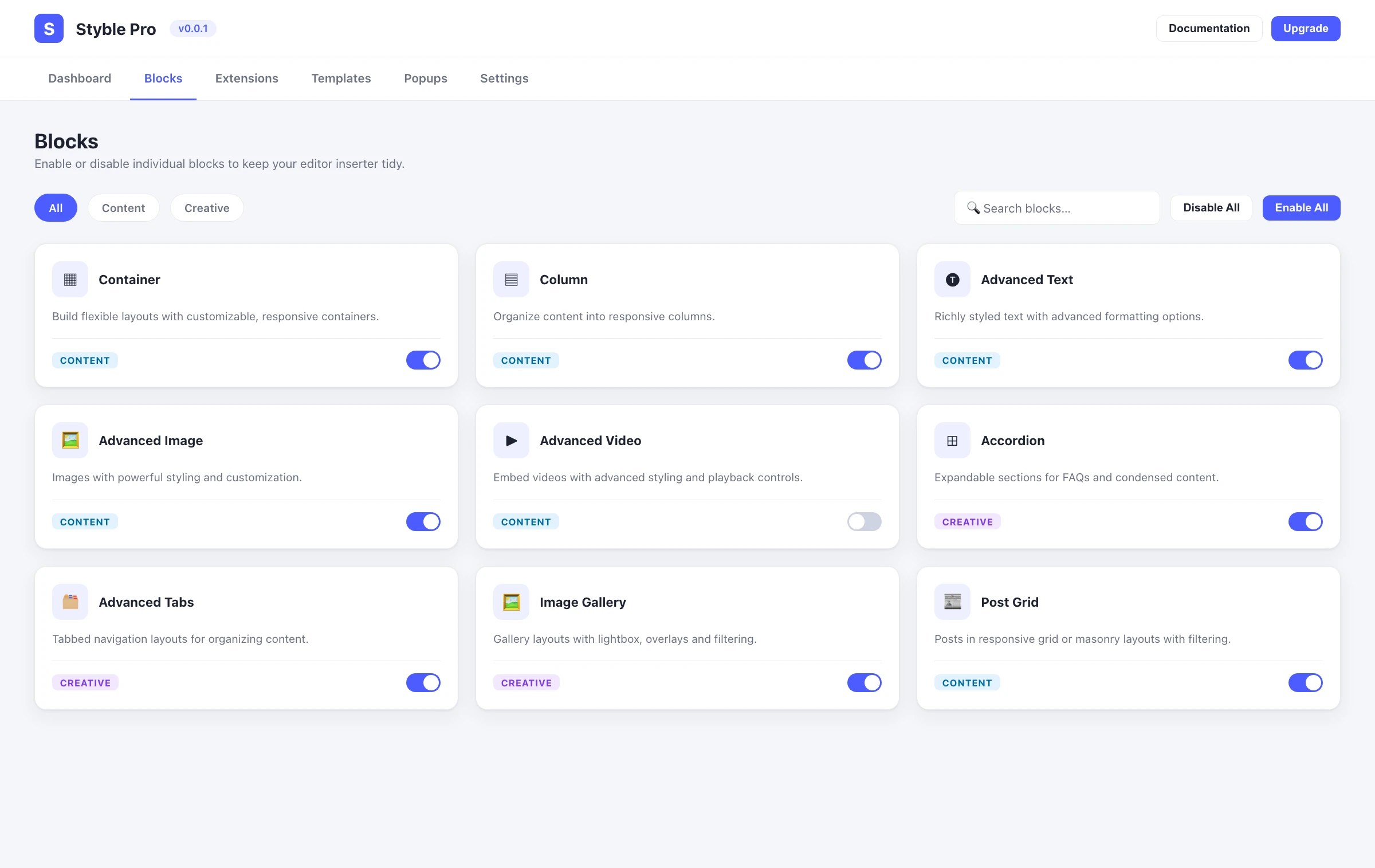
Opening the Blocks section
- Open the dashboard from the Styble Pro admin menu.
- Click Blocks in the top navigation.
Blocks are listed as cards, grouped by category. Each card shows the block's icon, its name, documentation/preview links, and a toggle.
Enable or disable a single block
Each block card has an on/off toggle on the right.
- Find the block you want to change.
- Click its toggle to show or hide it.
- The change is saved automatically and a confirmation message appears.
When a block is toggled off, it is hidden from the editor's block inserter; toggling it back on makes it available again.
Bulk enable or disable
Use the Enable All toggle in the toolbar (top right) to switch every block currently shown at once.
- Optionally apply a search or category filter first — the bulk toggle only affects the blocks that match the current filter.
- Click Enable All to enable them, or click it again to disable them.
- A message confirms that all blocks were enabled or disabled.
Filters affect bulk actions
Because bulk enable/disable only applies to the visible (filtered) blocks, you can narrow to one category and flip just that group on or off.
Search
Use the Search Block field in the center of the toolbar to filter the list by name as you type. Both the block title and its internal name are matched. If nothing matches, the section shows a "No blocks match your search" message.
Filter by category
Category pills on the left of the toolbar let you narrow the list:
| Filter | Shows |
|---|---|
| All | Every block, grouped under Content and Creative headings. |
| Content | Only blocks in the Content category. |
| Creative | Only blocks in the Creative category. |
When All is selected, blocks appear under their category headings; choosing a single category hides the headings and shows just that group.
Documentation & preview links
Each block card includes quick links:
- A documentation link that opens the block's docs in a new tab.
- A preview / open in new tab link (falls back to the documentation link if no separate preview is set).