

Settings
The Settings section of the dashboard gathers every plugin-wide option into one place. It's organized into tabs along the side: License Key, Site Settings, Performance, Advanced, Import/Export, and Ecosystem.
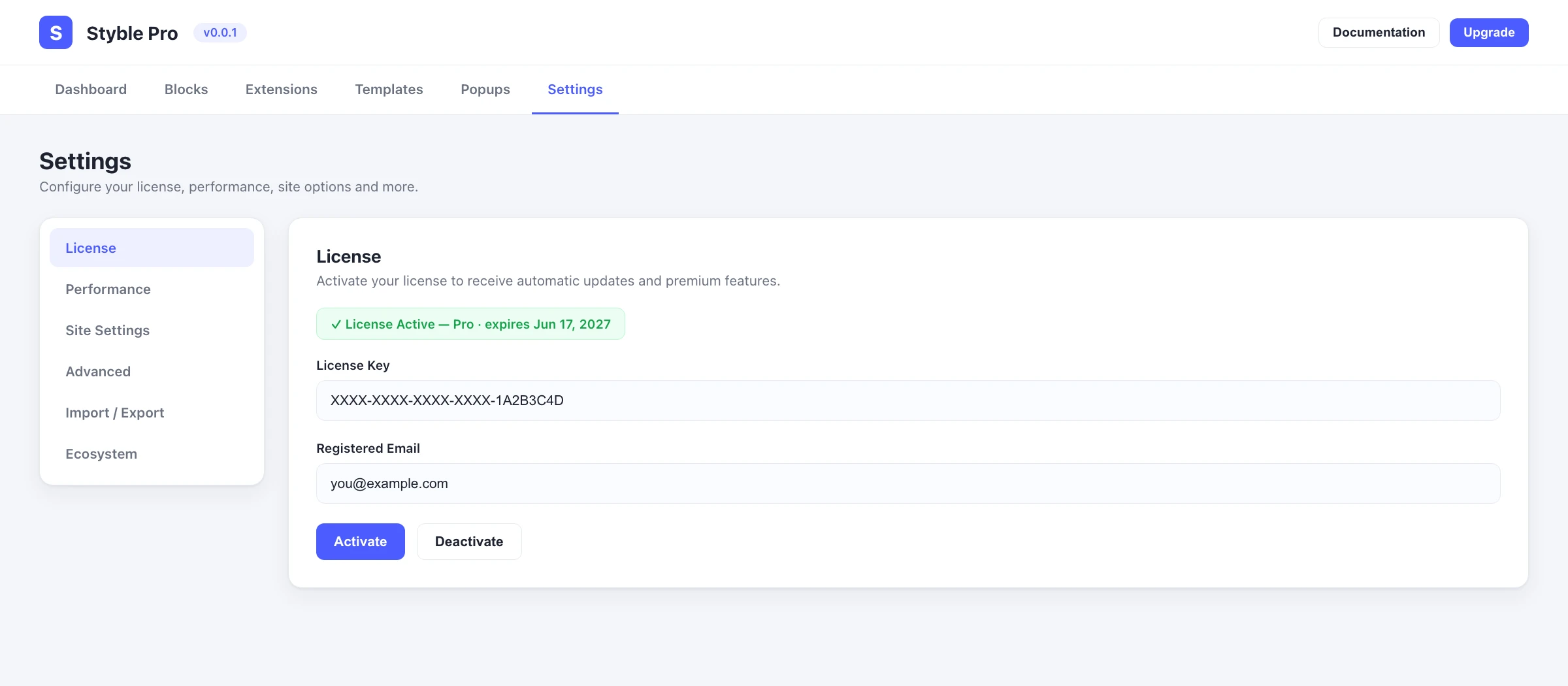
Opening Settings
- Open the dashboard from the Styble Pro admin menu.
- Click Settings in the top navigation.
- Choose a tab from the settings sidebar.
License
The License Key tab is where you activate Styble Pro to unlock updates and premium features.
- Enter your license key in the Place Your License Key field.
- Click Activate.
- When activation succeeds, the tab shows a License is active badge and, where applicable, the expiry date (or Lifetime).
To release the key — for example, to move it to another site — click Deactivate. If a license has lapsed, the tab shows a License expired status with a link to renew. A "How to get license key?" link points to the documentation if you don't have a key yet.
Performance
The Performance tab controls speed- and caching-related options:
| Option | What it does |
|---|---|
| Image Lazy Loading | Delays loading images until they scroll into view, improving initial page speed. |
| Load Google Fonts locally | Self-hosts Google Fonts to boost speed and avoid external requests to Google's CDN. |
| Clear Cached Styles | Resets the cached responsive CSS (and font caches) generated for Styble blocks. |
To clear the style cache, click Clear Cache and confirm the prompt. Use this when blocks display inconsistently or after updating styles, so Styble regenerates fresh CSS.
Site Settings
The Site Settings tab exposes common WordPress site options without leaving the dashboard:
- Site Title and Tagline.
- Site Logo (with a Logo Width in pixels). If no Styble logo is set, your WordPress Site Icon is shown as a fallback that you can override here.
- Your Homepage Displays — choose between Your Latest Posts or A static page, then pick the Homepage and Posts page from the dropdowns.
- Coming Soon Mode — show a "coming soon" page while your site is under construction (returns HTTP 200 once ready to index).
- Maintenance Mode — temporarily return HTTP 503 so search engines know to recheck later. Intended for short-term use.
Click Save Changes to apply your edits.
Advanced
The Advanced tab holds power-user toggles:
| Option | What it does |
|---|---|
| Unfiltered File Upload | Allows SVG and JSON uploads through Media and the Styble Icon Picker (files are sanitized). Enable only if you understand the security implications. |
| Design Library | Controls whether the Templates button (page templates and block patterns) appears while editing a page or post. |
| Toolbar Dynamic Content | Adds a toolbar button for inserting and editing dynamic content directly within a page or post. |
Import/Export
The Import/Export tab lets you move Styble's configuration between sites.
Export:
- Choose Export All Settings to include everything, or Customize Export to pick specific groups (Global Styles, Custom CSS, Responsive Settings, Performance Settings, Extension Settings, Blocks & Extensions Toggles, or the Entire Configuration).
- Pick an Export Format.
- Click Download File to save the export.
Import:
- Click Choose File and select a Styble export file (
.json). - Review the import summary that appears.
- Click Apply Import.
Imports overwrite settings
Importing overwrites matching settings on the current site. Back up your configuration (or export the current one) before applying an import.
Ecosystem
The Ecosystem tab showcases other ShapedPlugin products that pair well with Styble. Each card shows the plugin's name, a short description, and an install/activate button. Already-active plugins show a disabled status label instead of an action button.